Frequently Asked Questions
Orders
Orders placed before 10 AM Eastern Time are processed the same day they are received. Orders placed after 10 AM Eastern Time or on a Friday, weekend, or holiday are processed on the next business day and typically ship within 1-2 business days via UPS. You will receive an email confirmation of your order and can use our Order Tracking page to check the status of your order. Please note, your credit card is charged when your order is shipped. If multiple shipments are required to fulfill your order, you will be billed as the items are shipped. Delivery fees and taxes, if applicable, are charged on a pro-rated basis as items are shipped.
Please note, if your order value is $800 or more, our Customer Care Team will reach out to confirm order details, including billing and shipping address, prior to processing the order.
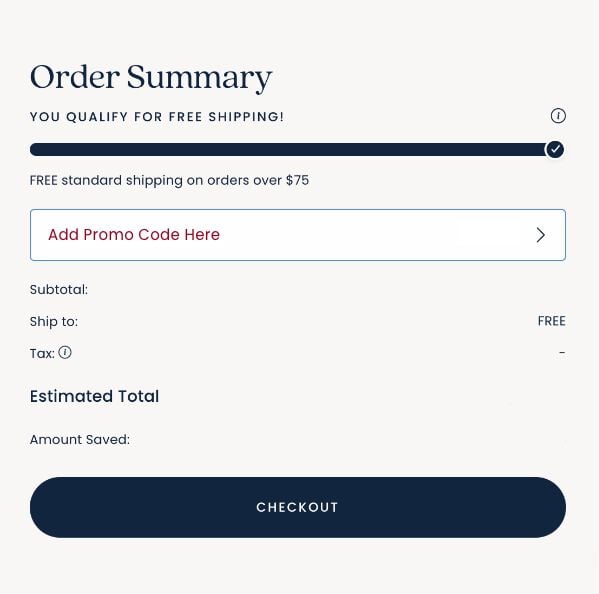
The Company Store offers Promotion Codes for product discounts from time to time. To use your Promotion Code, after adding the items you wish to purchase to your shopping cart, enter the promotion code in the “Promotion Code” field and hit apply. There is a secondary option to add the promotion code during the one-page checkout process as well.
Find out more details on current promotions. If you have any additional questions pertaining to Promotion Codes or need further assistance in placing your order, please feel free to call Customer Care at 1-800-323-8000.
Important Restrictions:
- Check the disclaimer with the Promotion Code for any applicable terms and conditions
- Promotions are subject to change at any time
- Promotion Codes are not transferable
- Promotion Codes may only be used once and only one code can be used per order
- No cash or credit back
- Promotion Code must be submitted at time of order
- Expired codes are not valid
- Tax and delivery are not included in calculating minimum purchase requirement
- Promotion Codes are not valid on previous purchases
The Company Store reserves the right to reject orders that use a Promotion Code that was obtained from a bulletin board or other Internet site. The Company Store also reserves the right to reject orders that use a Promotion Code that is in violation of any restriction listed above. If our system does not accept your Promotion Code and you believe you hold a valid code, please call us at 1-800-323-8000.
There are two easy ways to check your order.
Option 1: Log in to your account to check your order.
- Visit thecompanystore.com and select “Sign In” from the top navigation bar. Sign In.
- Enter your registered email address and password and click "Sign In".
- Under Orders, select your order number.
- On the Order Details page, find your Tracking Number and click on it, which will take you to UPS where you can see the estimated delivery date and package travel history.
Option 2: Track with order number and zip code.
- Click Track Your Order in the footer at the bottom of the home page.
- Enter your order number and billing zip code. (Phone orders will have an alpha prefix to the order number, while online orders are currently numeric.) Click Track Order.
- On the Order Details page, find your Tracking Number and click on it, which will take you to UPS where you can see the estimated delivery date and package travel history.
If you still have questions about your order, call us at 1-800-323-8000 or email us at custserv@thecompanystore.com. Please include your name, address, and order confirmation number in addition to your question so that we may assist you as quickly as possible.
Pending Fulfillment – We received the order, and it will be processed based on the selected shipping time. Orders placed before10 AM Eastern Time are processed that day. Orders placed after 10 AM Eastern Time or on a Friday, weekend, or holiday are processed the next business day.
Pending Fulfillment – At least one item in the order has shipped.
Fulfilled – All items in an order have shipped, excluding any canceled items. Occasionally a customer may choose to cancel an item in their order, or it may be canceled due to a stock issue that is out of our control. In this case, your credit card is only charged for the items that shipped.
Canceled – The entire order has been canceled.
When ordering online, you can request to receive an order confirmation via email. Just click on the appropriate box on the payment information page, make sure your email address is correct, and you will receive an email confirming your order after you click on “purchase”. Additionally, you will be given your order number on the order confirmation page after you submit your order. Be sure to jot this number down and keep it handy in case you have questions about your order.
To change or cancel your order call us at 1-800-323-8000 or email us at custserv@thecompanystore.com. Please include your name, address, and order number and the item you wish to cancel. We will do our best to cancel the order before it ships. If the item has shipped, simply return the item and we will credit your account.
If we have not yet processed the item(s), we may be able to make a correction depending on the status of your order. For fastest service, call us at 1-800-323-8000. Because this is a custom service, we cannot accept returns on personalized items once they have been completed.
The Company Store offers free ground shipping on orders of $100 or more to our customers within the 48 contiguous states. For orders under $100, there is a standard shipping cost of $8.99. In-stock items will ship within 1-2 business days via UPS. For deliveries to Alaska, Hawaii, and US Territories a $30 shipping fee applies; if your order is under our free shipping threshold, the standard shipping fee of $8.99 applies in addition to the $30 shipping charge. Unfortunately, we are unable to deliver to PO Boxes, military bases/APO/FPO addresses at this time. Free shipping is not available for The Company Store Mattress, some furniture, items shipped directly from the manufacturer, or other large items, which require special handling and care due to their size and weight.
Rush delivery options are also available for an additional fee, but not applicable to PO boxes. If your order is under our free shipping threshold of $100, the standard shipping fee of $8.99 applies in addition to the rush shipping charge.
- 2nd Day Delivery (2 business days): $22
- Overnight Delivery (next business day): $32
*Holiday shipping cutoffs may impact the above.
We are happy to ship items to more than one address, but unfortunately, we cannot do so online within a single order at this time. If you would like to place an order with multiple delivery addresses, you can enter separate orders online or call us at 1-800-323-8000. We regret any inconvenience and promise to make this easier in the future—stay tuned!
For most in-stock items delivered within the contiguous United States, expect to receive your order within 7 business days, depending on your delivery area. Orders for rush delivery are shipped the same day if received before 10 AM Eastern Time, excluding weekends or holidays. Please allow additional time for personalized items. Some items are shipped directly from the manufacturer (these items are noted on the product page) and may take up to 6 weeks for delivery, in addition The Company Store Mattress is hand assembled and will be delivered in 6-8 weeks—for more information on mattress delivery click here.
There are two easy ways to check your order.
Option 1: Log in to your account to check your order.
- Visit thecompanystore.com and select “Sign In” from the top navigation bar. Sign In.
- Enter your registered email address and password and click Sign In.
- Under Orders, select your order number.
- On the Order Details page, find your Tracking Number and click on it, which will take you to UPS where you can see the estimated delivery date and package travel history.
Option 2: Track with order number and zip code.
- Click Track Your Order in the footer at the bottom of the home page.
- Enter your order number and billing zip code. (Phone orders will have the letter H followed by 8 digits, while online orders are 8 digits only.) Click Track Order.
- On the Order Details page, find your Tracking Number and click on it, which will take you to UPS where you can see the estimated delivery date and package travel history.
If you still have questions about your order, call us at 1-800-323-8000 or email us at custserv@thecompanystore.com. Please include your name, address, and order confirmation number in addition to your question so that we may assist you as quickly as possible.
As long as you used your registered email, your phone order will show up in your Order History online.
To send items to multiple addresses you will have to place multiple orders. Please double check that the shipping and billing addresses are correct before placing your orders.
Online orders and phone orders store different information on the Order History page due to security issues. Orders placed by phone will not display Shipping Address, Billing Address, Shipping Method, Payment Method, Customer Care Notes, or Gift Messages. Please refer to your order confirmation email to verify this information.
It may be that you placed your order as a guest, rather than logging into your account. In this case, the order is not associated with a registered account, but you can still check the status of your online order by using the Order Tracker.
Payment
Whether you’re ordering online or by phone you can pay with Visa, MasterCard, Discover Network or American Express. We also accept payment via Apple Pay and PayPal for orders placed online.
The Company Store offers Promotion Codes for product discounts from time to time. To use your Promotion Code, after adding the items you wish to purchase to your shopping cart, enter the promotion code in the “Promotion Code” field and hit apply. There is a secondary option to add the promotion code during the one-page checkout process as well.
Find out more details on current promotions. If you have any additional questions pertaining to Promotion Codes or need further assistance in placing your order, please feel free to call Customer Care at 1-800-323-8000.
Important Restrictions:
- Check the disclaimer with the Promotion Code for any applicable terms and conditions
- Promotions are subject to change at any time
- Promotion Codes are not transferable
- Promotion Codes may only be used once and only one code can be used per order
- No cash or credit back
- Promotion Code must be submitted at time of order
- Expired codes are not valid
- Tax and delivery are not included in calculating minimum purchase requirement
- Promotion Codes are not valid on previous purchases
The Company Store reserves the right to reject orders that use a Promotion Code that was obtained from a bulletin board or other Internet site. The Company Store also reserves the right to reject orders that use a Promotion Code that is in violation of any restriction listed above. If our system does not accept your Promotion Code and you believe you hold a valid code, please call us at 1-800-323-8000.
Your credit card is charged when your order is shipped. If multiple shipments are required to fulfill your order, you will be billed as the items are shipped. Shipping fees, as well as taxes, if applicable, are charged on a pro-rated basis as items are shipped.
No.
Shipping
The Company Store is pleased to offer free ground shipping on orders of $100 or more within the 48 contiguous states. We strive to ship in-stock items within 1-2 business days via UPS. For orders under $100, there is a standard shipping cost of $8.99. In-stock items will ship within 1-2 business days via UPS. For deliveries to Alaska, Hawaii, and US Territories a $30 shipping fee applies; if your order is under our free shipping threshold, the standard shipping fee of $8.99 applies in addition to the $30 shipping charge. Free shipping is not available for The Company Store Mattress, some furniture, items shipped directly from the manufacturer or other large items, which require special handling and care due to their size and weight.
As a reminder, orders placed before 10 AM Eastern Time are processed the same day. Orders placed after 10 AM Eastern Time—including Overnight and 2-day delivery—or on a Friday, weekend, or holiday are processed the next business day.
For in-stock items, you should receive a shipping confirmation email with tracking information within 1-2 business days of placing your order. In addition, you can access your tracking number on both the Order History page and the Order Details page. Thanks to our exclusive relationship with our trusted shipping partner UPS, you can track your package 24 hours a day on UPS.com using your tracking number. For real-time notifications from UPS sign up for UPS My Choice®.
Please allow 24-48 hours for the tracking information to update. Orders may show as multiple shipments if applicable. The Company Store Mattress is hand assembled and will be delivered in 6-8 weeks —for more information on mattress delivery click here.
Thanks to our exclusive relationship with our trusted shipping partner UPS, you can track your package 24 hours a day on UPS.com using your tracking number. To receive real-time notifications from UPS or manage the delivery of your package, sign up for UPS My Choice®.
You can also login to your Company Store account to check your order.
Option 1: Log in to your account to check your order
- Visit thecompanystore.com and select “Sign In” from the top navigation bar. Sign In.
- Enter your registered email address and password and click "Sign In".
- Under Orders, select your order number.
- On the Order Details page, find your Tracking Number and click on it, which will take you to UPS where you can see the estimated delivery date and package travel history.
Option 2: Track with order number and zip code
- Click Track Your Order in the footer at the bottom of the home page.
- Enter your order number and billing zip code. (Phone orders will have the letter H followed by 8 digits, while online orders are 8 digits only.) Click Track Order.
- On the Order Details page, find your Tracking Number and click on it, which will take you to UPS where you can see the estimated delivery date and package travel history.
If you still have questions about your order, call us at 1-800-323-8000 or email us at custserv@thecompanystore.com. Please include your name, address, and order confirmation number in addition to your question so that we may assist you as quickly as possible.
Your UPS Package Tracking number is 18 characters including both numbers and letters. It can be found:
- In your Shipment Confirmation email from custserv@thecompanystore.com
- If you are opted into UPS emails, it can be found in the shipping email from “UPS My Choice®” (mcinfo@ups.com)
- In addition, you can access your tracking number on both the Order History page and the Order Details page.
If you need help, call us at 1-800-323-8000 or email us at custserv@thecompanystore.com.
The current global supply chain challenges have impacted virtually every industry, and we are no different. Our team works tirelessly to find solutions and deliver our products efficiently, while still making the safety and health of our customers and employees our top priority, as is the case with our distribution and delivery partners. We appreciate your patience as we navigate this uncharted territory. Get additional information about backorders.
The Company Store ships to all 50 states (including Alaska and Hawaii) as well as US Virgin Islands and Puerto Rico. A $30 shipping fee will be applied to orders outside the contiguous US. Items with heavyweight charges are not available to be shipped outside the contiguous US.
Unfortunately we do not ship to Canada at this time.
Some items are shipped directly from our trusted manufacturers (which is noted on the product page) and may take up to 6-8 weeks for delivery. These items include, but are not limited to furniture, rugs, and custom orders.
Rush delivery options are available within the contiguous US. We guarantee timely delivery, or we pay for the additional shipping charges ourselves. Rush delivery options are not available to PO boxes.
- 2nd Day Delivery (2 business days): $22
- Overnight Delivery (next business day): $32
Rush delivery orders must be placed before 10 AM, Eastern Time and the item must be in stock to ship the same business day. If your order is under our free shipping threshold of $100, the standard shipping fee of $8.99 applies in addition to the rush shipping charge. All orders placed after 10 AM Eastern Time or on a Friday, weekend, or holiday will ship the following business day. We do not offer rush delivery on heavyweight items or items shipped directly from the manufacturer.
Delivery guarantee will not apply to events out of our control or impacting the carriers’ ability to deliver, such as severe weather.
Our White Glove Delivery Service ($199) includes the delivery, unpacking, and placement of your mattress to the room of your choice, plus the removal and disposal of your old mattress as well as all packaging. Your mattress is hand assembled in the U.S. and will be delivered in 6-8 weeks. When it is ready to be shipped you will receive an email from us with information about delivery. In addition, our shipping partner, PILOT, will reach out to schedule delivery at your convenience. Please note, an adult 18+ must be present on the scheduled delivery date to provide access into the home for the delivery.
Furniture and rugs are shipped directly from the manufacturer. For some items, please allow 4-6 weeks for delivery. We offer truck delivery for oversized furniture that exceeds parcel carrier shipping weight limits; this includes our premium in home delivery service for a fee. For added convenience, the carrier will deliver to your room of choice (within two flights of stairs) and remove all packing material. Assembly service is not included. The carrier will contact you to provide a 4-hour delivery window once the items have arrived in your area. Someone 18 years of age or older must be present to sign for the delivery.
We ask that you inspect your delivery upon its arrival to ensure there are no damages and provide a signature upon receipt. Contact our Customer Care team at 1-800-323-8000 or email us, custserv@thecompanystore.com, we are here to help. Truck delivery is available in the 48 contiguous states.
Arranging delivery is by appointment Monday-Friday and Saturday as needed. A service representative will contact you to arrange a delivery date and confirm the appointment timeframe (typically a 4-hour window).
Yes! We want you to love the look and feel of your custom order—please allow an additional 5-7 business days for your order to be personalized. You are welcome to select an expedited shipping method, but this will not increase the speed at which your items are monogrammed. If there are multiple items in your order, they will all ship together when the personalization is complete.
Returns
We want you to be happy. If you are unsatisfied with any portion of your order, we are happy to accept returns within 30 days of your purchase. Refunds will be returned to the original method of payment. Please note, a shipping fee of $4.50 per item will be deducted from your refund.
Purchases may be returned in 4 easy steps:


Enter your order number and billing zip code on the Returns page, then click “Return Items/View Status”.


Select the items you want to return and the reason for the return.


Print your Shipping Label or download your mobile/QR code, pack the items, and drop your package at a convenient UPS location.


Receive your refund, minus a fee of $4.50 per item.
All our products are made to the highest quality standards, and we stand behind them with our 30-day Rest Easy Guarantee. Your comfort, our promise. Wash it, sleep on it, enjoy and have fun with it, just don’t damage it. If your ultimate comfort hasn’t been achieved, return it! It’s that easy.
Please note that we are not able to accept returns of monogrammed items, clearance items (prices ending in $0.97), delivery and service charges, and Gift Cards.
Yes. You can return one item from an order and then come back and request an additional return from the same order, if it is within the 30-day return window. It is best to return items in as few packages as possible. Provided the products are from the same order, we encourage you to send all returns in one box. Please note, a fee of $4.50 per item will be deducted from your refund.
There is no need to do anything. You can ignore the email reminding you to drop off your return, and just enjoy your purchase.
Your shipping label and mobile/QR code are attached to your Return Confirmation email. If you cannot locate the email in your inbox or spam folder, please contact our customer care team: Via chat (click the chat button on the bottom right hand of the page), email at custserv@thecompanystore.com, call 1-800-323-8000, or follow our step-by-step Return Instructions.
Your return package can be dropped off at any UPS drop off location, nationwide. Find a UPS drop-off location.
We will replace items beyond 30 days if the product is part of the Lifetime Guarantee program. To determine if your product qualifies for Lifetime Guarantee, look for this logo  or click here.
Custom items are made to order specifically for you and may not be canceled or returned. Custom orders include items with a monogram and all upholstered furniture: headboards, complete beds, slipcovers, benches, chairs, stools, and settees which cannot be returned unless received damaged or defective. To ensure you are choosing the right fabric, we recommend you order swatch materials before placing your order. Please call our Customer Service representatives at 1-800-323-8000 or email us at custserv@thecompanystore.com.
We’ve all been there, and we’ve got your back. Our Customer Care team will keep your secret and even help you find something that’s more your style. Contact them at 1-800-323-8000 or email us at custserv@thecompanystore.com.
Refunds are returned to the original method of payment, minus a $4.50 per item returns processing fee.
The refunded amount will appear back in the original method of payment in approximately 3-5 business days from when your package is received.
Original shipping fees are non-refundable. In addition, a return fee of $4.50 per item is deducted from your refund, so your refund will be slightly less than what you paid.
We offer a 100-day trial for your mattress. Because mattresses require some time to adjust, we will not accept mattress returns within 30 days of delivery. If at the end of the 30 days and within the 100-day period, you are not satisfied with the mattress, please contact our Customer Care team at custserv@thecompanystore.com or 1-800-323-8000 for assistance.
Furniture and rugs are shipped directly from the manufacturer. Please note, made to order furniture and rugs are not eligible for returns. For eligible items, if you’re not completely satisfied with your purchase, we’ll gladly offer you a refund for undamaged items. You must contact us within 7 days of your delivery to arrange a return. The item must be returned within 30 days from receipt of product. A restocking fee will apply to furniture at 25% of the purchase price. Shipping and handling fees are non-refundable. Return shipping and return pick up fees are the customer’s responsibility and nonrefundable We are here to help, please call our Customer Service representatives at 1-800-323-8000 or email us at custserv@thecompanystore.com.
Unfortunately, we are not able to accept exchanges at this time, but you are welcome to return your item and repurchase what you would like. The comfort experts on our Customer Care team are happy to help you find other options. Contact them at 1-800-323-8000 or email us at custserv@thecompanystore.com.
For any questions, please contact The Company Store’s Customer Care team 6 days a week:
Chat: Simply click the chat button on the bottom right hand of the home page to connect to a Customer Care expert.
Email: custserv@thecompanystore.com
Call: 1-800-323-8000 (Monday-Friday: 8 am – 10 pm EST; Saturday: 9:30am-6pm EST; Sunday: Closed)
*Hours may differ during the holidays.
If an item is returned outside the 30-day window or is not in compliance with the policy above, The Company Store reserves the right to refuse the refund.
Account
To change your password, follow these steps:
- Log into your personal account.
- Go to Personal Info.
- Select Edit Your Account.
- Create a new password in the “Change Your Password” section.
If you have forgotten your password, click “Forgot Your Password?” on the sign in page and you will be prompted to enter your email which will provide further instructions.
To update your address:
- Log into your account.
- Select Addresses.
- Choose the Address you want to update by clicking “Edit”.
- Update the address accordingly.
To update your payment information:
- Log into your account.
- Select Payment.
- Select the card you want to update by clicking “Edit”.
- Update the card information accordingly.
To change your email preferences or unsubscribe, open any email you have received from The Company Store. Scroll to the bottom and click on either “Manage Preferences” or “Unsubscribe”.
Loyalty Rewards Program
Joining Comfort Rewards
Comfort Rewards is a loyalty program designed to reward our loyal customers.
Comfort Rewards is a loyalty program designed to reward our loyal customers.
Members of Comfort Rewards earn points with every purchase they make from The Company Store. VIP members earn one point for every dollar spent. These points can be redeemed for discounts on future orders.
Joining is easy and free!
New Customers:
Create an account and check the “Join Comfort Rewards” box on the Create Account form. You can also opt in during checkout by selecting “Save My Information” and checking the box there.
Existing Customers:
Log in to your account, go to your Account Dashboard, and check the “Join Comfort Rewards” box to opt in.
Once you’ve opted in, you’ll start earning rewards on your purchases right away!
Earning & Spending Points
You will earn 100 points for creating a Comfort Rewards Account and then you will earn points with every purchase you make from The Company Store. VIP members earn one point for every dollar spent. To ensure accuracy, your order subtotal will be rounded to the nearest whole dollar for rewards calculations. For example, if your subtotal is $48.50, you will earn 49 points. If your subtotal is $48.37, you will earn 48 points.
The total points you will earn with your order is shown under the Order Summary in your shopping bag.
The points will be added to your account approximately 30 days after you receive your order.
Redeeming your rewards is easy. Once you have placed your items into your shopping bag and are ready to checkout, select the reward you want to redeem from the dropdown menu at the bottom of your bag and it will be applied to your existing order.
No, there is no limit on the number of points you can earn in a year. For more details see our Terms & Conditions.
If you return an item, the points will be deducted from the pending points total of that order. Please note, pending points are sent to your account approximately 30 days after you receive your order. If you applied a reward to your order and returned the entire order, the points used for the reward will be added back to your account.
Yes, if you do not use your points, they will expire 12 months from the day your last points were earned. For example, if you earned points in January and did not earn any additional points in the following year, those points would expire the following January.
If you return an item, the points will be deducted from the pending points total of that order. Please note, pending points are sent to your account approximately 30 days after you receive your order. If you applied a reward to your order and returned the entire order, the points used for the reward will be added back to your account.
Yes, you can redeem your Comfort Rewards in conjunction with other promotions.
If you place your order without signing in to your Comfort Rewards account, please contact our Customer Care Team for assistance.
Email: custserv@TheCompanyStore.com
Phone: 1-800-323-8000
Yes, you can earn points on phone orders, but you will need to provide the e-mail address that is associated with your Comfort Rewards account. Our Customer Care Team is happy to assist you.
Yes. Note the points will be added to your account about 30 days from the purchase date.
Yes, you can earn points when purchasing with a gift card.
Unfortunately, we cannot award points for orders placed before our Comfort Rewards program was launched (November 6, 2024).
Membership Benefits & Rewards
You can see your rewards on your account dashboard when you sign in to your account.
Sign in to your account and click on Your Rewards to view your points and rewards history.
Please contact our Customer Care Team if you would like to delete your account.
Email:custserv@TheCompanyStore.com
Phone:1-800-323-8000
Your registered email cannot be changed. If you have questions, please contact us.
Email:custserv@TheCompanyStore.com
Phone:1-800-323-8000
For more information about privacy visit our Privacy Policy page.
The effective date of these terms and conditions is November 6, 2024. FOR THE MOST UP-TO-DATE PROGRAM TERMS, PLEASE VISIT WWW.THECOMPANYSTORE/REWARDS.
Welcome to The Company Store's Comfort Rewards Program (“Program"). The Program was created by The Company Store ("The Company Store", "our", “us”, or "we") to reward and recognize our customers. The Program is available only for customers who make qualifying purchases at www.thecompanystore.com.
The Company Store’s Comfort Rewards Terms and Conditions
1. ACKNOWLEDGEMENT AND ACCEPTANCE
By participating in the Program, you (“you” or “Member”) consent to these The Company Store’s Terms and Conditions (the “Terms”). You acknowledge and agree that: (1) you have read and accepted these Terms and are responsible for remaining knowledgeable about these Terms; (2) you are a customer and will use your Program membership only in association with your personal and business transactions; (3) the expiration and renewal of your Program membership is by The Company Store in its sole discretion; (4) The Company Store reserves the right to change these Terms or terminate the Program at any time, with or without prior written notice to you; and (5) The Company Store may terminate your membership in the Program, in its sole discretion, for any fraud, misrepresentation, abuse, or violation of these Terms, or any other reason. The Company Store reserves the right to pursue legal action in the event of any of the foregoing.
2. NOTICE OF FINANCIAL INCENTIVE REGARDING MEMBERSHIP
As a Member, you may receive discounts, exclusive offers, and other benefits. You can learn more about the specific benefits available in Section 3 (PROGRAM AND BENEFITS) below. Discounts, Perks, and offers generally are determined by your purchases and inferred interests. To administer the Program and to provide you with benefits, we may collect the following types of information:
- Identifiers, such as your name, email address, phone number, Comfort Rewards ID (which is your email address associated with the account you use to make online purchases), and physical address.
- Internet Activity, such as your browsing history, search history, and information about your interactions with our websites, applications, and electronic communications.
- Commercial Information, such as the products you have purchased from us.
- Employment Information, such as your profession, trade, or line of business.
- Inferences about the products that may interest you in association with your transactions.
To opt into the Program, you must register for an account at the www.thecompanystore.com and agree to these Terms.
You must use your Comfort Rewards ID (which is your email address associated with the account you use to make online purchases) or be logged into your account when purchasing products from us if you wish those purchases to be associated with your Program membership for purposes of us providing you with offers based on purchase activities or determining your eligibility for discounts, Perks, and offers. By participating in the Program, you agree that we and our affiliates (including service providers, agents, and parties initiating communications on our or their behalf) may contact you for marketing and non-marketing purposes via email, text message, telephone call, fax, and other forms of communication as permitted by law.
You have the right to withdraw from the Program at any time and may do so by contacting our Customer Care Team at 1-800-323-8000 or by emailing custserv@TheCompanyStore.com.
The benefits we provide to Members are reasonably related to the value of the Member personal information we collect, as determined by comparing the value of the benefits provided to the costs of collecting and retaining Member personal information in association with administering the Program. We estimate the value of Member personal information to be $.25-$.29 per Member.
3. PROGRAM AND BENEFITS
A. How It Works. The Program provides benefits to Members who make Qualifying Purchases during each calendar year (January 1 to December 31, which is referred to as an “Annual Period”). “Qualifying Purchases” means purchases of designated products or services (less taxes, fees and returns) at www.thecompanystore.com, excluding prior purchases and the value of promotions received.
4. REGISTRATION AND ELIGIBILITY
A. Registration. To register in the Program, visit the www.thecompanystore.com and complete the registration process, and read and agree to these Terms. Your primary email address will be your Program identification method (“Comfort Rewards ID”). A telephone number and valid email address may only be associated with one online account (including your Comfort Rewards account).
B. Eligibility. The Program is open to legal residents of the United States who are at least 18 years old at the time of enrollment. The Program is for personal and business use only. By enrolling, you represent that you meet the eligibility requirements. Employees of Company and its affiliates are eligible for the Program.
C. Earning Points. Members will earn 1 point for every $1.00 spent on qualifying purchases. Points will be awarded based on the total amount spent, excluding taxes, shipping, and any applicable discounts. Points are awarded in whole integers (spend is rounded up to next full dollar). Points will be credited to the Member’s account within approximately thirty [30] days after the order of a qualifying purchase has shipped. If a partial order was shipped, points will be issued for the value of the shipped products contained within that shipment accordingly. Points can also be earned by completing certain tasks as outlined on www.thecompanystore.com/rewards. The Company Store reserves the right to change the point-earning structure at any time. Points cannot be pooled across accounts.
D. Redeeming Points. Points can be redeemed for rewards, discounts, and exclusive offers as outlined on www.thecompanystore.com/rewards. Previous purchases are excluded. Points have no cash value and may not be exchanged for cash. Points must be redeemed by logging into your account and selecting the applicable reward or offer at checkout. Points may be subject to expiration as detailed in Section F.
E. Rewards and Benefits. Members will receive rewards and benefits as part of their participation in the Program. These may include [free shipping, birthday rewards, early access to sales, etc.]. Rewards are non-transferable and may not be sold or auctioned.
Certain rewards may have limited availability, and The Company Store does not guarantee availability of any particular reward.
F. Account Maintenance. Members are responsible for ensuring their account information is accurate and up to date. This includes email addresses and any other contact information. The Company Store reserves the right to cancel or suspend accounts that have inaccurate information or have been inactive for 12 months.
G. Inactivation/Suspension. You may inactivate your membership at any time by contacting us. In addition, The Company Store reserves the right to suspend any Member at any time in its sole discretion. During any period while you are inactive or suspended, you will not receive any membership benefits. If your membership is re-activated, you will earn rewards as if you were a new Member.
5. ADDITIONAL INFORMATION
A. Changes to Program. The Company Store may, in its sole and exclusive discretion, terminate the Program (or any part of the Program) or change these Terms at any time without notice. Any changes to the Program will be shown in these Terms and will be effective immediately upon posting on this webpage, unless stated otherwise. Any changes to any printed version of these Terms will be contained in the next reprinting of that printed version. These Terms are available at www.thecompanystore.com/rewards.
B. Privacy. When you enroll in the Program, we will collect your first and last name, email address and primary phone number. A valid email address is required for membership. By participating in the Program and providing us with this information, you agree that we may use your information to administer your participation in the Program; to send you electronic receipts and other transaction records; for marketing purposes; and as otherwise described in The Company Store’s Privacy and Security Statement, available online at https://www.thecompanystore.com/privacy-about-this-policy.html
Privacy Policy
The Company Store values and respects the privacy of its customers and visitors. This Privacy Policy describes the privacy practices of The Company Store.
By participating in the Program, you agree that we and our affiliates (including service providers, agents, and parties initiating communications on our or their behalf) may contact you for marketing and non-marketing purposes via email, text message, telephone call, fax, and other forms of communication. You also agree that we and our affiliates (including service providers, agents, and parties initiating communications on our or their behalf) may use an automatic telephone dialing system or prerecorded voice to contact you for non-marketing purposes. You can contact us or otherwise communicate your privacy preferences by:
- Calling us at 1-800-323-8545
- Emailing us at myinfotcs@homedepot.com
- Registering or changing your privacy preferences at https://www.thecompanystore.com/privacy-about-this-policy.html
- Writing us at the address below (please include your email address and phone number with your correspondence along with the information needed to support your request):
The Company Store, Inc. Attention: Privacy Official Customer Care 2455 Paces Ferry Road Atlanta, GA 30339-4024
C. Taxation and other Fees. All federal, state and local income taxes, insurance, licensing, registration, liabilities, surcharges, title fees and any other fees connected to the Program are the sole responsibility of the Member. Winners of any Promotion may need to complete a Form W-9, and The Company Store will report the value of the prize on a Form 1099 at the end of the year.
D. Disputes and Governing Law. If there is any dispute arising out of or related to these Terms or the Program, you expressly agree that any such dispute will be governed by the laws of the State of Georgia, without regard to its conflict of law provisions, and you expressly agree and consent to the exclusive jurisdiction and venue of U.S. District Court for the Northern District of Georgia, Atlanta Division, or the Superior Court of Cobb County, Georgia, for the resolution of any such dispute.
E. Limitation of Liability; Disputes. IN NO EVENT SHALL THE COMPANY STORE, ITS AFFILIATES OR AGENTS BE LIABLE FOR ANY DIRECT, INDIRECT, PUNITIVE, INCIDENTAL, SPECIAL OR CONSEQUENTIAL DAMAGES ARISING OUT OF OR IN ANY WAY CONNECTED WITH THE PROGRAM, WHETHER BASED ON CONTRACT, TORT, STRICT LIABILITY OR OTHERWISE. TO THE EXTENT YOUR STATE DOES NOT ALLOW THE EXCLUSION OR LIMITATION OF INCIDENTAL OR CONSEQUENTIAL DAMAGES, THIS EXCLUSION MAY NOT APPLY. This Section shall survive termination of the Program or your participation in it.
F. Additional Rules.
- Members have no ownership interest in any information, offers, benefits, perks, promotions, coupons, accrued spend, discounts and/or events related to the Program. Accrued spending does not constitute property of Members. Use of the word "accrue" or “earn” in marketing materials in relation to the Program shall mean "collect" and shall not infer that the membership level has any value. Membership levels may not be purchased or sold and are not transferable except as otherwise stated herein.
- The Program is not available and is void where prohibited by federal, state or local law or regulation.
- Despite our best efforts to ensure accuracy, printing errors occasionally occur. The Company Store reserves the right to correct such errors at any time even if it affects pending Program benefits.
- By using your Comfort Rewards ID to make purchases at The Company Store, you accept all terms and conditions in these Terms and release The Company Store and hold The Company Store harmless from any claim, liability or damage relating to the Program.
- In the event that you contact, or transact any business with, third parties providing separate services, products and/or websites, you acknowledge and agree that (1) your use of such third parties is subject to the terms and conditions of any agreements that you enter into with such third parties, including without limitation transaction agreements, purchase orders, terms of use, and/or privacy policies; and (2) The Company Store is not a party to any agreement that you enter into with such third parties; is not responsible for any claims or damages arising from your contacting, transacting business with, or using any services, products and/or websites of such third parties; and shall have no liability to you relating to or arising from such third parties.
- A Member’s account may be subject to other terms and conditions based on its engagement with The Company Store.
- Program offers cannot be combined with any other offer.
- THE COMPANY STORE MAKES NO EXPRESS OR IMPLIED REPRESENTATION OF WARRANTY AS TO ANY PROGRAM BENEFIT AND WILL NOT BE LIABLE FOR INJURY, DAMAGE, LOSS OR EXPENSE RESULTING FROM THE USE OR ACCEPTANCE OF ANY PROGRAM BENEFIT.
G Contact. Any questions regarding your membership can be directed to Customer Care Center at 1-800-323-8000 or by emailing custserv@TheCompanyStore.com.
Refer a Friend
To refer a friend, you must be an existing customer. Please note, members of our Trade & Hospitality Program are not eligible.
Your friend needs to place their first order. Once they do, you’ll receive your 35% Off coupon.
You will receive your reward approximately one day after your friend places their order.
When you refer a friend, you can earn a 35% Off coupon that can be applied to future orders. To refer a friend, send the referral via email, text, or Facebook. Your friend must make their first purchase for you to receive your reward, which will be emailed to you approximately one day after your friend places their first order. There is no limit to the number of friends you can refer.
If it's a partial return or cancellation, you will still receive your reward. However, if the entire order is canceled or returned, the reward may no longer apply.
Terms and Conditions
The Company Store Referral Program
The Company Store (“we”, “The Company Store” or “Company”) is offering you the opportunity to refer friends via a Referral Program (“Program”) offered on the web site located at www.thecompanystore.com (the “Site”).
Binding Agreement. By using the Site or participating in the Program, you are bound by these Terms and Conditions (“Terms”) and indicate your agreement to them. All of the Company's decisions are final and binding.
Privacy. The personal information collected, processed and used as part of the Program will be used in accordance with Company’s Privacy Statement, which is available by link on the Site.
How the Program Works. You must be a legal resident of the United States of America and at least 18 years old to use the Site. Next, you must visit the Site and follow the on screen instructions to refer friends, family members, or colleagues. Once an individual makes a referral, he or she becomes a “Referrer.” Referred friends (“Friends”) will receive a promotional offer, sent by the Referrer, which may be applied to their first purchase. To qualify, the Friend must place their first order. After a Friend completes a qualifying first purchase, the Referrer will receive a 35% Off coupon, delivered via email. Rewards are typically issued approximately one day after the Friend places their qualifying order, and are subject to verification and program terms.
Restrictions. Referrers cannot refer themselves or create multiple, fictitious or fake accounts with the Company or participate in the Program as “Friends”. No user may use the Program to violate any law, infringe or violate the rights of any third party, or otherwise act in a manner that is deemed harassing, harmful, illegal, hateful, obscene or outside the spirit and intent of the Program. In addition, you may not (i) tamper with the Program, (ii) act in an unfair or disruptive manner, or (iii) use any system, bot or other device or artifice to participate or receive any benefit in the Program. CAUTION: ANY ATTEMPT TO DELIBERATELY DAMAGE OR UNDERMINE THE LEGITIMATE OPERATION OF THE PROGRAM MAY BE IN VIOLATION OF CRIMINAL AND CIVIL LAWS. SHOULD SUCH AN ATTEMPT BE MADE, THE COMPANY RESERVES THE RIGHT TO SEEK REMEDIES AND DAMAGES (INCLUDING ATTORNEY FEES) TO THE FULLEST EXTENT OF THE LAW, INCLUDING CRIMINAL PROSECUTION.
Rewards. By making a valid referral, the Referrer may receive a promotional discount to use toward their next purchase, and the Friend may receive a promotional discount to be applied to their first purchase, as outlined in the referral offer. Previous purchases are excluded. Rewards have no cash value and may not be redeemed for cash. Rewards may be applied toward future purchases in accordance with their terms and conditions. Rewards are subject to verification. The Company may delay the issuance of a reward for purposes of investigation and may refuse to verify or process any transaction for any reason. Unless otherwise stated, rewards have no monetary value and may not be redeemed for cash. They are not transferable and may not be auctioned, traded, bartered or sold.
Liability. YOU UNDERSTAND AND AGREE THAT THE RELEASED PARTIES (DEFINED BELOW) SHALL NOT BE LIABLE TO YOU FOR ANY DIRECT, INDIRECT, INCIDENTAL, SPECIAL, CONSEQUENTIAL, OR EXEMPLARY DAMAGES, INCLUDING, BUT NOT LIMITED TO, DAMAGES FOR LOSS OF PROFITS, GOODWILL, USE, DATA OR OTHER INTANGIBLE LOSSES (EVEN IF THE COMPANY WAS ADVISED OF THE POSSIBILITY OF SUCH DAMAGES). By participating in the Program, you agree to defend, indemnify, release and hold harmless the Company Store and Zinrelo, as the provider of the referral service, and their respective parent companies, affiliates and subsidiaries, together with their respective employees, directors, officers, licensees, licensors, shareholders, attorneys and agents including, without limitation, their respective advertising and promotion entities and any person or entity associated with the production, operation or administration of the Program (collectively, the “Released Parties”), from any and all claims, actions, demands, damages, losses, liabilities, costs or expenses caused by, arising out of, in connection with, or related to the Program (including, without limitation, any property loss, damage, personal injury or death caused to any person(s)) and/or the awarding, receipt and/or use or misuse of any benefit in the Program. To be clear, the Released Parties shall not be liable for any technical errors or malfunctions, data theft or corruption, any printing or typographical error, or any damage to any computer system resulting from participating in, or accessing or downloading information in connection with the Program. The Released Parties shall not be liable to any users for failure to supply any advertised benefit, by reason of any acts of God, any action or request by any governmental or quasi-governmental entity (whether or not valid), or any other activity or action that is beyond any of the Released Parties’ control. TO THE FULLEST EXTENT POSSIBLE BY LAW, THE RELEASED PARTIES’ MAXIMUM LIABILITY ARISING OUT OF OR IN CONNECTION WITH THE PROGRAM, REGARDLESS OF THE CAUSE OF ACTION (WHETHER IN CONTRACT, TORT, BREACH OF WARRANTY, OR OTHERWISE), WILL NOT EXCEED $100.
Disclaimer of Warranties. YOU EXPRESSLY UNDERSTAND AND AGREE THAT: (A) THE PROGRAM IS PROVIDED ON AN “AS IS” AND “AS AVAILABLE” BASIS AND THE COMPANY EXPRESSLY DISCLAIMS ALL WARRANTIES, CONDITIONS AND TERMS OF ANY KIND, WHETHER EXPRESS OR IMPLIED BY STATUTE, COMMON LAW OR CUSTOM, INCLUDING, BUT NOT LIMITED TO, WARRANTIES AS TO PRODUCTS OR SERVICES OFFERED THROUGH THE USE OF THE PROGRAM, IMPLIED WARRANTIES OF MERCHANTABILITY, SATISFACTORY QUALITY, FITNESS FOR A PARTICULAR PURPOSE, AND NON-INFRINGEMENT; (B) THE RELEASED PARTIES MAKE AND GIVE NO WARRANTY THAT (i) THE PROGRAM WILL MEET YOUR REQUIREMENTS, (ii) THE PROGRAM WILL BE UNINTERRUPTED, TIMELY, SECURE, OR ERROR-FREE, AND (iii) THE QUALITY OF ANY PRODUCTS, SERVICES, INFORMATION, OR OTHER MATERIAL OBTAINED BY YOU THROUGH THE PROGRAM WILL MEET YOUR EXPECTATIONS, AND (C) ANY MATERIAL DOWNLOADED OR OTHERWISE OBTAINED THROUGH THE USE OF THE PROGRAM IS ACCESSED AT YOUR OWN DISCRETION AND RISK, AND YOU WILL BE SOLELY RESPONSIBLE FOR ANY DAMAGE TO YOUR COMPUTER SYSTEM OR MOBILE DEVICE OR LOSS OF DATA THAT RESULTS FROM THE DOWNLOAD OR USE OF ANY SUCH MATERIAL.
Bulk Distribution (“Spam”). Each Referrer is the actual sender of the emails and must comply with applicable law. Referrals must be created and distributed in a personal manner that is appropriate and customary for communications with friends, colleagues and family members. By submitting any email address as part of the Program, the Referrer represents that he/she has the appropriate permission and consent. Bulk email distribution, distribution to strangers, or any other use of the services described herein in a manner that is not promoted is expressly prohibited and may be grounds for immediate termination and further legal action. The Company has no obligation to monitor the Program or any communications; however, the Company may choose to do so and block any email messages, remove any such content, or prohibit any use of the Program. Referrers who do not comply with the law, including anti-spam laws, are obligated to indemnify the Program Entities against any liabilities, costs and expenses it incurs as a result of such spam.
Sign-In Credentials. Users are responsible for maintaining the confidentially of any sign-in credentials and are fully responsible for all activities that occur through the use of them. Users agree to notify the Company immediately if they suspect unauthorized access to their account. Users agree that the Company will not be liable for any loss or damage arising from unauthorized use of their credentials.
Right to Cancel, Modify or Terminate. We reserve the right to cancel, modify or terminate the Program at any time for any reason. We reserve the right to disqualify any User (defined below) at any time from participation in the Program if he/she does not comply with any of these Terms.
©2025 The Company Store, All Rights Reserved. Read about our Privacy Policy.
Powered by Zinrelo
Backorders
Occasionally, a product is more popular than we anticipated, and we temporarily run out of stock. When that happens, we will immediately notify you via email with the anticipated shipping date and continue to update you via email if necessary. Most items that are backordered are expected to arrive in our fulfillment center within 30 days. We ship all ordered items as they become available, so if you have ordered more than one item and any of those items is on backorder, you will receive multiple shipments. If your order is sent in multiple shipments, your credit card will be charged separately for each shipment, including prorated shipping charges, if applicable.
If you would like to inquire about the status of a backordered item, call us at 1-800-323-8000 or send us an email at custserv@thecompanystore.com and include your name, address and order confirmation number, if known.
To cancel any backordered item, call us at 1-800-323-8000 or send us an email at custserv@thecompanystore.com and include your name, address, and order confirmation number, if known, and the item you wish to cancel. If the item has not already shipped, we will cancel it immediately. If it has already shipped, simply return the items that you do not want, and we will credit your account. Please note, a fee of $4.50 per item will be deducted from your refund.
We do our best to closely monitor inventory levels and keep The Company Store site as current as possible, but sometimes, we receive multiple orders for items that are being discontinued and subsequently become permanently unavailable before we are able to remove those products from our site. If that happens, we will notify you that the item has been “canceled” and may suggest an alternate product. Because we bill you as items are shipped, your credit card will not be charged for any items that are unavailable. If an item is discontinued, we may substitute merchandise of equal or better value. We will call you to inform you that a substitute item is available and will only ship it to you with your permission.
Occasionally, a product is more popular than we anticipate and sells out. You will be notified of a restock date at the time of your order and we will send additional emails to update you if necessary. We want you to start enjoying your product as soon as possible and will ship your order as soon as it becomes available. If your order is sent in multiple shipments, your credit card will be charged separately for each shipment, including prorated shipping charges, if applicable.
If you would like to inquire about the status of a backordered item, call us at 1-800-323-8000 or send us an email at custserv@thecompanystore.com and include your name, address and order confirmation number, if known.
At The Company Store, we want to make your shopping experience as seamless and worry-free as possible. If your order is under $100 and contains a combination of in-stock and backordered items, rest assured that you will only be charged shipping once. Whether we deliver everything together or send in-stock items first and backordered items later, you won’t incur additional shipping charges.
Unfortunately, the current supply chain challenges are far reaching and unpredictable, hitting the shipping and logistics industry particularly hard. We are working closely with our distribution and delivery partners to get backordered items back in stock. As we receive status changes from our vendors, we will update our expected shipping time for the product. We want you to have the latest and best information on when you can expect to receive your item(s).
We update our inventory status online several times a day. However, some popular items can sell out very quickly. If the inventory status was updated just before the item sold out, it could appear to still be in stock for a short period of time. We sincerely apologize for any inconvenience. For help in selecting an alternative item or for backorder updates, please contact our Customer Care Team at custserv@thecompanystore.com or 1-800-323-8000.
Gift Cards & EGift Cards/Certificates
An EGift Card/Certificate (“E” signifying electronic) works the same way as a regular gift card/certificate but is sent electronically to an e-mail address that the sender specifies when placing the order.
You can purchase The Company Store EGift Card/Certificate online, or by phone at 1-800-323-8000.
No. Promotional discounts cannot be used towards the purchase of an EGift Card/Certificate.
No. EGift Cards/Certificates are treated as a merchandise credit and can only be used towards the purchase of products or services from our website or catalog.
Yes.
You can check your EGift Card/Certificate balance online, or by calling 1-800-323-8000. You will be asked to provide the EGift Card/Certificate code.
The Company Store is not responsible for lost or stolen Gift Cards or EGift Cards/Certificates, or if your Gift Card/Certificate is used without your permission. Please treat these cards with the same security methods as you would with cash.
Sent to a valid email address, the recipient should receive their EGift Card/Certificate within a few hours of the order being billed.
The recipient will get an e-mail alerting them of their gift. The e-mail will also include information on how to use the EGift Card/Certificate.
If your recipient did not receive their EGift Card/Certificate, or accidentally deleted it, please call 1-800-323-8000.
If the EGift Card/Certificate cannot be opened or printed, please contact our Customer Care Team at 1-800-323-8000 for assistance.
It is the responsibility of the sender to provide the correct e-mail address of the recipient. The Company Store is not responsible for EGift Cards/Certificates sent to a valid but incorrect e-mail address. To ensure delivery to the correct recipient, we recommend you verify the recipient’s e-mail address prior to placing your order.
To redeem online, shop at The Company Store and then proceed to checkout. At the “Payment” page, enter the alpha-numeric EGift Card/Certificate code. You will also need to provide a credit card to complete your order if the total exceeds the amount of the EGift Card/Certificate. Your EGift Card/Certificate will always be debited first. Your credit card will only be charged the balance of the order that the EGift Card/Certificate did not cover.
The customer care specialist will guide you through this process, asking you to read the alpha-numeric EGift Card/Certificate code. Your customer care specialist will be able to provide your total for the purchase and advise if there is a balance remaining on the gift card/certificate.
No. At this time you may use only one EGift Card/Certificate on a purchase.
If the gift card/certificate you are redeeming do not cover the entire amount of your order, you will be asked to provide a credit card for the balance of the payment.
If your order is less than the value of your EGift Card/Certificate, the balance will remain on the EGift Card/Certificate for future purchases.
No. Please do not dispose of your EGift Card/Certificate until you are completely satisfied with your purchase.
If you are returning merchandise purchased with an EGift Card/Certificate, the amount of the merchandise credit will be placed on the existing EGift Card/Certificate. Please note, a fee of $4.50 per item will be deducted from your refund.
No. All returns are credited in the original form of payment.
If you purchased an item using your EGift Card/Certificate and credit card together, the amount you paid with your EGift Card/Certificate will be returned first, up to the amount used for the original purchase and the balance to the credit card that was used on the order, if refundable amount exceeds the original gift card value. Please note, a fee of $4.50 per item will be deducted from your refund.
About The Company Store
In the 1800s, our European ancestors settled along the scenic bluffs of western Wisconsin. To endure the often-brutal Wisconsin winters, they naturally began handcrafting the warm down comforters and featherbeds from their Scandinavian homeland. This strong sense of tradition and craftsmanship is the foundation of The Company Store only now we offer an even greater selection of comfortable products. Find out more about Our Story.
The Company Store was acquired by The Home Depot in December 2017.
The Company Store headquarters is located in Weehawken, NJ.
The Company Store is an online-only retailer. We don't currently operate physical retail stores, but you can shop our complete collection online or through our catalogs, with delivery directly to your home.
To receive a catalog or send one to a friend, request one here. You should expect to receive your catalog in 10-14 days. In the meantime, check out our latest online catalog.
To be removed from our mailing list, please call us at 1-800-323-8000 or send an email to custserv@thecompanystore.com. Include your complete name and the mailing address you would like us to remove. If you have a catalog handy, please include the customer number found in the pink box above your name. We will promptly process your request, but please note we prepare our mailings months in advance, so you may receive an additional catalog or two before your name is completely removed from our files. We appreciate your patience and understanding.
If you’re receiving extra copies of our catalog, please call us at 1-800-323-8000 or let us know via email at custserv@thecompanystore.com. Be sure to include your complete address as it appears on each catalog you receive.
When you sign up to request a catalog, or place an order with us, you can tell us your preferences. If you would like to change your preferences at any time, you may email us at custserv@thecompanystore.com. Please be sure to include complete information. We will process your request as quickly as possible. Get more information on our privacy policy.
TheCompanyStore.com has partnered with Impact Radius to bring you an easy to use, income generating advertising campaign.
We give you the tools to help drive traffic to TheCompanyStore.com and earn commissions based on your success. Your tools will include promotional text links, beautifully designed banners and complete product feed. Once a visitor from your site places an order on TheCompanyStore.com, you will earn a commission from that sale.
Click here to start your approval process into our program. Once approved, you will be notified with a welcome email.
The Company Store Products
Our Customer Care Team is happy to answer your questions about fabric, color, style, delivery…anything! Contact us by:
Chat: Simply click the chat button on the bottom right hand of the home page to connect to a Customer Care Specialist.
Email: custserv@thecompanystore.com
Call: 1-800-323-8000 (Monday-Friday: - 8 am – 10 pm ET; Saturday: 9:30am-6pm ET; Sunday: Closed)
We continually update our site to add new products and regret any inconvenience if you have been unable to find a product online that’s featured in your catalog. Please contact our Customer Care Team using the chat button on site, at custserv@thecompanystore.com, or call us at 1-800-323-8000 to find out if the item still available or for assistance in selecting an alternate item.
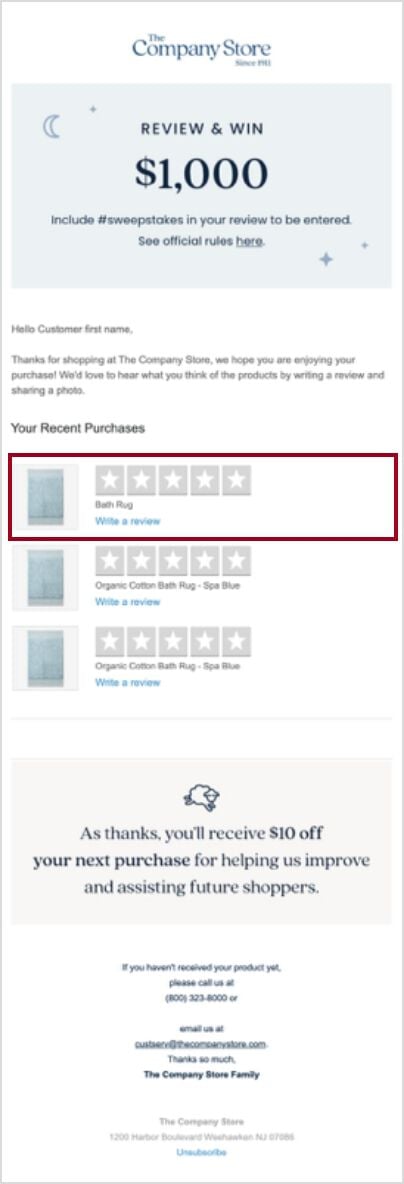
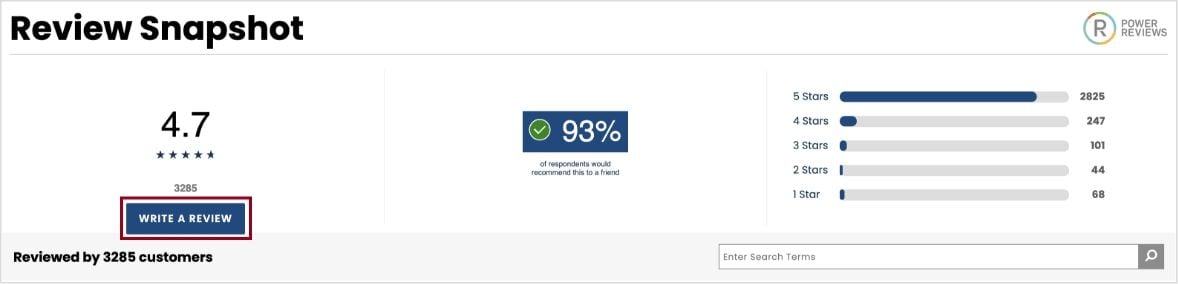
There are two ways to leave product reviews:
- You should receive an email after your purchase that will link you to our Review Your Purchase Form. From there just follow the steps to review your purchases.
- In addition, you can visit the product page for the item you’d like to review. Scroll down to the Reviews section and click on Write a Review and follow the steps from there.
We add new products every month to both The Company Store catalog and web site. Visit our web site often for the complete collection and the latest specials.
Most products assembled in the USA are covered by our Lifetime Guarantee. These products may be returned at any time (certain exclusions apply). We will gladly offer you an exchange or merchandise credit (excluding delivery and service charges). This symbol indicates which products carry our Lifetime Guarantee. Look for it throughout the catalog and website.
Click here to go to our product & certifications glossary.
BEDDING PRODUCTS
Whether you want to create a complete look for your bedroom or just add a few accent items, The Company Store has something for everyone. Check out How to Layer Your Bed in 5 Easy Steps to get started.
Thread count is simply the number of threads in a square inch. The higher the thread count, the tighter the weave. Thread count alone is not an indicator of quality—the quality of the material is more important. The Company Store uses only premium fabrics to create exceptional products. For more information, check out our Sheet Guide.
It’s a matter of personal preference. The Company Store has options for all sleepers. For more information, check out our Sheet Guide.
Our bedding products are made of a variety of materials, mostly different types of cotton. For more information visit our Sheet Guide. In addition, here’s a brief glossary of terms to guide you when selecting our products.
- Combed Cotton: Removing short fibers and impurities from harvested cotton, makes combed cotton extremely soft and strong. It is the highest quality cotton available, and the only cotton used at The Company Store.
- Supima® Cotton: Only the top 3% of all cotton grown in the USA earns the label of Supima® – superior pima. All Supima® is 100% American grown pima cotton, prized for its incredible softness, durability, and ability to absorb moisture and retain color.
- Egyptian Cotton: Harvested in the rich soils of the Nile River Delta, Egyptian cotton is the world’s highest quality cotton. Its fine, extra-long fibers are about twice the length of typical cotton fibers, giving it incredible softness without sacrificing strength.
- TENCEL™ Lyocell: Produced from the wood of sustainably sourced trees harvested with environmentally responsible processes, TENCEL™ Lyocell fibers produced fabrics with great luster, soft hand, and good drape—their breathable and temperature-regulating qualities wick away moisture and keep you cool as you sleep
- Jersey Knit: Soft, stretchy, and relaxed, jersey knit sheets have the same comfy, broken-in feel as your favorite t-shirt. Naturally breathable and wrinkle-resistant, these sheets get softer with every wash.
- Percale: Cool, crisp, and lightweight, percale is a plain-weave fabric that’s smooth to the touch and perfect for people who get warm while sleeping. Percale resists pilling and gets better over time—becoming even crisper and cooler the more you wash it.
- Sateen: Sateen is a cotton fabric prized for its soft, silky touch and subtle sheen. Made with a weave that leaves more yarn exposed on the face of the fabric, the resulting finish is softer, silkier, and more lustrous than other fabrics.
- Flannel: Renowned for its cozy softness and warmth, flannel is a woven cotton or wool fabric popular during colder months. Flannel undergoes a unique brushing process that lifts its fibers, creating a plush texture and tiny pockets that trap air for more insulating warmth. Check out our Guide for more info on the benefits of flannel.
We sell bedding for a wide variety of sizes:
- Twin (adult and children’s bedding)
- Full
- Queen
- King and California King
- Deep pocket
- Extra-Long Twin
- Oversized Comforters
- Daybeds
- Bunk beds
Yes, we sell a wide selection of GOTS-certified organic crib sheets and crib skirts, crib mattresses, stroller blankets, and more.
Note: The CPSC, AAP and NICHD recommend that infants under 12 months be put to sleep in a crib with no soft bedding of any kind under or on top of the baby. Consider using a sleeper or other sleep clothing as an alternative to blankets with no other covering. If using a blanket, put baby with its feet at the foot of the crib. Tuck a thin blanket around the crib mattress, only as far as the baby's chest.
Quilts and coverlets are similar—both can add warmth and style to your bed. Quilts are typically thicker and warmer because they feature two layers of fabric with batting between, while coverlets are a single layer and lighter weight—like a bedspread. For more info check out our Quilts vs. Coverlets guide.
Always follow the care instructions that come with your bedding to keep it in good shape. For further tips on how to care of your bedding, check out our Product Guides.
Our bedding collection varies with the seasons, with many of our popular patterns reappearing as the seasons change. During the summer, you might not see our full flannel collection, and you probably won’t see our summer theme prints in mid-winter. You will find our most current selection online unless they are out of stock.
If you’ve previously purchased an ensemble that you don’t see on our site or in our catalog anymore, call us at 1-800-323-8000 or send us an email at custserv@thecompanystore.com, with the name of the pattern or as much descriptive information as you can, as well as the specific pieces you’re interested in. We’ll do our best to find them for you. We frequently provide special orders for our customers, but please be aware it can take some time for us to fulfill the request. Our customers agree that it’s worth the wait!
BATH PRODUCTS
When choosing towels for your bathroom, there are three things to consider: style, material, and size. To help you find the perfect towel, check out our Towel Guide.
As a general rule, you'll want to have extra towels on hand just as you would bed linens—one set in the bathroom, one in the closet and one in the laundry. If you or family members use an extra bath towel every day, remember to double the number of bath towels to be sure you have enough on hand. And don't forget your guests— always be prepared for at least two guests, more if you play host frequently or have a large family.
Bathroom Basics Checklist
Towels Per Person:
- 3 bath towels
- 3 hand towels
- 6 washcloths
Accessories per bathroom:
- 2 bath mats
- 2 shower curtains
Best practice is to follow the care instructions that come with your towels. In addition, here are a few expert tips to care for your towels:
- Always wash your towels before using them to help set their color, improve absorbency, and reduce lint.
- Wash like colors together.
- Avoid using fabric softeners which can deteriorate the towel fibers and reduce their absorbency.
- Give your towels a shake when you take them out of the washer to fluff the Terry loops that aid absorbency.
- Don’t iron Terry towels; this will reduce absorbency.
- Ensure that towels are dry when you remove them from the dryer. Even slightly damp towels can quickly mildew.
- Avoid over drying your towels which can destroy the integrity of the individual cotton fibers.
- Avoid contact with skin care products to help minimize towel spotting and bleaching.
DOWN PRODUCTS
Simply put, down is nature’s finest insulator. Down keeps you cozy in winter and provides a light breathable layer in warmer weather. Unlike feathers which are stiff and flat, down clusters are structured somewhat like snowflakes, with dozens of soft, fine filaments. We use only premium down from mature birds that have superior down clusters. As the filaments “loft”, they trap air and body heat, creating thousands of tiny warmth pockets, which is what keeps you comfortable—and what makes our down so luxuriously lightweight.
Most “down allergies” are actually caused by dust and impurities present in down. All down used by The Company Store is purified in state-of-the art equipment constructed especially for this task. We also make sure the cleaners used on our down are non-toxic and phosphate-free.
All of our fine down comforters are labeled according to comfort level. We offer a range of comfort levels— from Super Light to Ultra Warmth—to suit our customer’s individual sleeping preferences. For help finding your perfect comforter, check out our Comforter Guide.
Thread count refers to the number of threads per inch of a particular fabric. For example, our 232 thread count cotton cambric comforter shells are woven with 232 threads per single square inch of fabric. The tighter weave of high thread count fabrics also acts as natural “down proofing,” keeping the down from leaking out.
While the visual differences of the various stitches are quite noticeable, they also offer a different comfort. Some permit “shifting,” allowing you to move the down where it’s most desired; others keep the down evenly in place.
Fill power is a guide used to measure a particular down’s ability to warm. Fill power is calculated by placing an ounce of down in a cylinder and recording the space that it occupies. The higher the fill power, the more fluff in the down, the better down traps air—and it’s the trapped air that keeps you warm. High fill power down gives you more warmth with much less weight. Read our comforter fill guide for more information on weight and fill.
With only a little care, your down comforter will provide years of luxurious comfort. Between cleanings, protect your comforter from soil and wear with a comforter cover, or duvet. An occasional outside airing will also help maintain freshness. When cleaning is necessary, most of our down products can be machine laundered according to the care instructions on the label. For more info, check out our comforter guide.
Quite simply—absolutely nothing! The names can be used interchangeably—for tips on how to change your duvet cover read our guide.
The Company Store has tips for choosing a comforter based on weight, fill, shell material, and features—check out our Comforter Guide.
PILLOWS
Our bed pillows are available in four sizes:
- Standard 20 in. x 26 in.
- Queen 20 in. x 30 in.
- King 20 in. x 36 in.
- Euro 26 in. x 26 in.
We also have a wide selection of support and specialty pillows, as well as down and down alternative decorative pillow inserts. For help finding the perfect pillow, check out our Pillow Guide.
When washing your pillow, it is always best to follow the care instructions that came with your pillow. For helpful tips on washing and storing your down or down alternative pillows, check out our guide How to Clean Pillows.
Yes. We want you to be happy with your pillow. If you are unsatisfied with it, you can return it within 30 days of your purchase. For more details see our Returns section.
APPAREL
Our apparel is sized for comfort. Please see our Size Guide for details.
All of our pajamas are made from premium materials for ultimate comfort. Our apparel collection includes luxurious Pima cotton, breathable and eco-friendly TENCEL™ Modal, all-natural organic cotton, and cozy and warm flannel.
The return policy for apparel is the same as our bedding and bath products. If you are unsatisfied with your purchase, you can return it within 30 days of your purchase. Visit the Returns section for more information.
PERSONALIZATION
Yes, we offer personalization and monogramming on sheets, towels, bedding and more. For details visit our Personalization Guide.
Many items can be personalized including towels, robes, sheets, duvet covers, holiday stockings, and blankets and throws. Products that can be personalized will have ‘Personalize’ above the Add to Bag button. The price to personalize an item ranges from $12 to $18 depending on the personalization and item selected. Prices are calculated at checkout.
With multiple styles, fonts, and thread colors to choose from there are may options to help you create a one-of-a-kind item for yourself or someone special. Check out our Personalization Guide for details. Don’t see the font you’re looking for? Contact 1-800-323-8000.
Items that can be personalized will have ‘Personalize’ above the Add to Bag button. Check the box and follow the easy steps to create your personalized product. Don’t see the font you’re looking for? Contact 1-800-323-8000.
If you don’t see the font you want or have a special personalization request, contact our Customer Care Team at 1-800-323-8000. We are currently revamping our personalization experience in order to continue to offer the best options to our customers.
If we have not yet processed the item(s), we may be able to make a correction depending on the status of your order. For fastest service, call us at 1-800-323-8000. Because this is a custom service, we cannot accept returns on personalized items once they have been completed.
LIFETIME GUARANTEE
Most of our products assembled in the USA are covered by our Lifetime Guarantee. The products may be returned at any time** (see below for exclusions). We will gladly offer you a replacement or merchandise credit towards a new product (excluding delivery fees). Look for this symbol throughout the catalog and website which indicates the product carries a Lifetime Guarantee.
Any of our down, down and feather blend, or down alternative products, which includes pillows, comforters, blankets, featherbeds, mattress pads, and specialty pillows. Please note that pet comforters are currently excluded from our Lifetime Guarantee Policy.
The Lifetime Guarantee covers the lifetime of the household of the individual who placed the order.
Any quality issues because of the assembly process would be a valid reason to submit a request for consideration under the Lifetime Guarantee. Assembly issues would include but are not limited to: excessive down leaking; stitching of the pattern or edge coming undone; the cording along the outer edge is not connected or is loose; the fabric is not dyed consistently across the item; product is not made to specification, such as an incorrect stitch pattern; or the product is labeled incorrectly.
Visible staining such as pet stains, food stains, or human bodily fluids voids the Lifetime Guarantee. Alterations to the product, improper care of product, such as not following cleaning instructions, or person/pet made damages are other examples that would void the Lifetime Guarantee. All Lifetime Guarantee returns go through a careful inspection process. If the returned product is beyond normal wear and tear, an email will be sent stating why the item does not fall under our Lifetime Guarantee.
No. The Lifetime Guarantee only applies to purchases after February 10, 2006.
All tags, including The Company Store and item labels, should be attached to the product. Proof of purchase should also be included with your original email requesting Lifetime Guarantee consideration. Proof of purchase can be the original order or shipping confirmation, or credit card statement. If you do not have proof of purchase, our Customer Care Team will make every attempt to locate your original order. If proof of purchase cannot be located, the item would not be eligible for Lifetime Guarantee consideration.
We will offer you a replacement of equivalent merchandise or a merchandise credit of the original purchase price of the item (excluding original delivery fees) toward a new order.
Please call us at 1-800-323-8000 and advise that you would like consideration for a Lifetime Guarantee. We will note your account and provide instructions for the next steps. Those steps will include taking the following pictures:
- The Company Store tag attached to the product
- The item tag showing the item number attached to the product
- Picture of the front of the product
- Picture of the back of the product
- A close-up photo of the problem area of the product you feel qualifies for return under the Lifetime Guarantee policy
Next, please send an email to lifetime@thecompanystore.com. In the email, in addition to attaching the five pictures, please include your name, address, phone number, and a copy of the original proof of purchase. The proof of purchase can be your order confirmation or shipping confirmation.
Our Lifetime Returns Specialist will begin reviewing your email and photographs once we receive them. You will receive a phone call or email within 7 to 10 business days to continue the process of exchanging the product for a new item, applying credit towards a new order, or sending you a gift card for a future purchase. If the item does not meet the conditions of our Lifetime Guarantee policy, we will contact you as well.
PRODUCT RECALLS
THE CONSUMER PRODUCT SAFETY COMMISSION (CPSC) HAS ANNOUNCED A RECALL ON THE PRODUCT(S) IDENTIFIED BELOW: Information on each recalled product, and the steps you should take if you own such a product, are also set forth in more detail below. You may also visit the CPSC Web site at www.cpsc.gov for additional information or call their 24 hour Toll-Free Consumer Hotline at 1-800-638-2772.
07/03/2019 Girl’s Pajama Sets
12/13/2018 Kids’ Hooded Robe
5/4/2023 Kids’ White Robe
The Company Store Mattress
DELIVERY
Our White Glove Delivery Service ($199) includes the delivery, unpacking, and placement of your mattress to the room of your choice, plus the removal and disposal of your old mattress as well as all packaging. Your mattress is hand assembled in the U.S. and will be delivered in 6-8 weeks. When it is ready to be shipped you will receive an email from us with information about delivery. In addition, our shipping partner, PILOT, will reach out to schedule delivery at your convenience. Please note, an adult 18+ must be present on the scheduled delivery date to provide access into the home for the delivery.
Your mattress is hand assembled and will be delivered in 6-8 weeks. When it is ready to be shipped you will receive an email with delivery information.
You will receive an email when your mattress is ready to ship with information about our shipping partner, PILOT. They will reach out to schedule delivery at your convenience.
Yes, our White Glove Delivery service includes the removal of your old mattress and foundation.
Certain states require retailers to collect a small fee for each mattress sold to fund their recycling efforts. The Company Store supports these efforts and covers the fee on behalf of our customers. The states impacted include Connecticut ($16.00) and Rhode Island ($20.50). The fees are mandated by law and transferred to the applicable state. The Mattress Recycling Council (MRC), a nonprofit organization established by the mattress industry, oversees the program, and uses a network of organizations to transport and recycle old mattresses according to government regulations. You’ll see the recycling fee reflected in your order summary at checkout, but it will be crossed out as The Company Store pays the fee for you.
RETURNS & WARRANTY
We offer a 100-day trial for your mattress. Because mattresses require some time to adjust, we will not accept mattress returns within 30 days of delivery. If at the end of the 30 days and within the 100-day period, you are not satisfied with the mattress, please contact our Customer Care Team at custserv@thecompanystore.com or 1-800-323-8000 for assistance.
Because it can take some time to adjust to a new mattress, we will not accept returns within 30 days of delivery. If you are not satisfied with your mattress after the 30 days have passed, you may return it up to 100 days from delivery.
The Company Store Mattress has a 15-year limited warranty, which covers defects in workmanship and/or materials (other than fabric). Contact our Customer Care Team at custserv@thecompanystore.com or 1-800-323-8000 for assistance.
You will receive a warranty card when your mattress is delivered with details on how to register your mattress.
Please contact our Customer Care Team at custserv@thecompanystore.com or 1-800-323-8000 to initiate a warranty claim. Please note proof of purchase with date, place of purchase and purchase price is required.
MATTRESS DETAILS
The Company Store Mattress and foundation comes in six sizes: Twin, Twin XL, Full, Queen, King, and Cal. King. The foundation comes in two profile heights: 5 in. and 9 in.
Mattress Dimensions
- Twin 38 in. x 75 in. x 15 in.
- Twin XL 38 in. x 80 in. x 15 in.
- Full 53 in. x 75 in. x 15 in.
- Queen 60 in. x 80 in. x 15 in.
- King 76 in. x 80 in. x 15 in.
- Cal King 72 in. x 84 in. x 15 in.
Foundation Dimensions
- Twin 38 in. x 75 in.
- Twin XL 38 in. x 80 in.
- Full 53 in. x 75 in.
- Queen 60 in. x 80 in.
- King (2 pieces) 38 in. x 80 in. (total width of 76 in.)
- Cal King (2 pieces) 36 in. x 84 in. (total width of 72 in.)
For optimal support and warranty purposes, we strongly recommend the use of our coordinating foundation. Our mattress is also compatible with adjustable bases. Please note that another company’s foundation may not provide suitable support for The Company Store Mattress and could void your warranty. For specific details, please refer to the Warranty Card that comes with your mattress.
The Company Store Mattress features curated layers of fiber and foam. Two layers of gel quilting foam provide pressure relief, and a layer of latex helps to lift the body and distribute weight evenly. Additionally, two layers of coils separated by a layer of all-natural cotton, provide further support and stability. The outside of the mattress features a quilted top in a silk, wool, and cashmere blend, which offers temperature regulation, as well as a breathable stretch knit outer fabric which quietly adapts to the weight and shape of the body.
Our premium hybrid mattress is assembled in the U.S. of imported and domestic materials.
Our mattress comes in Twin, Twin XL, Full, Queen, King, and Cal. King sizes. Any fitted sheet that accommodates at 15” high mattress will fit The Company Store Mattress properly.
FOUNDATION DETAILS
A foundation is a wooden box with wooden slats on top, typically covered in cloth. A mattress foundation provides support for your mattress and prevents sagging. The Company Store foundation is made of spruce wood and includes 10 polyester covered wooden slats and is available in two profile heights: 5 in. and 9 in.
Yes, our foundation comes in two profile heights: 5 in. and 9 in.
A foundation is a wooden box with wooden slats on top, whereas a box spring is wooden box with springs inside. The main difference is the support level they provide. Foundations provide a firmer sleeping surface and are ideal for all mattress types, while box springs only work with lighter mattresses. The Company Store Mattress requires a mattress foundation for proper support.
5 in. foundation weights are:
- Twin 44.51 lbs.
- Twin XL 45.76 lbs.
- Full 61.76 lbs.
- Queen 65.63 lbs.
- King 89.64 lbs.
- Cal. King 91.90 lbs.
9 in. foundation weights are:
- Twin 49.91 lbs.
- Twin XL 52.18 lbs.
- Full 67.30 lbs.
- Queen 72.27 lbs.
- King 102.48 lbs.
- Cal. King 105.54 lbs.
The delivery of your foundation is included in our White Glove Delivery Service. Once your mattress and foundation are ready to be shipped you will receive an email from us with information about delivery. In addition, our shipping partner, PILOT, will reach out to schedule delivery at your convenience. Please note, an adult 18+ must be present on the scheduled delivery date to provide access into the home for the delivery.
No, you cannot order the foundation without also ordering The Company Store Mattress.
You may return the foundation only if you choose to return the mattress as well. We offer a 100-day trial for your mattress and foundation. Because mattresses require some time to adjust, we will not accept mattress and foundation returns within 30 days of delivery. If at the end of the 30 days and within the 100 day period, you are not satisfied with the mattress and foundation, please contact our Customer Care Team at custserv@thecompanystore.com or 1-800-323-8000 for assistance.
CARING FOR THE MATTRESS
To refresh and deodorize your mattress follow these steps:
- Vacuum the topper with a handheld attachment.
- Sprinkle a thin layer of baking soda over the entire surface of your mattress.
- Allow the baking soda to sit for about eight hours.
- Vacuum the mattress thoroughly to remove the baking soda.
For a deeper clean of liquid spills follow these steps:
- Blot the spill gently with a towel or paper towel to soak up excess liquid—do not rub.
- Mix cool water and a small amount of mild soap into a spray bottle.
- Spray the affected areas.
- Blot gently again to remove excess moisture.
Our limited warranty does not require the turning or rotating of your mattress. The choice is yours. Please review your warranty card for directions on rotating if desired.
Contact Us
Our customer care specialists are ready to take your phone order, check on the status of an existing order or answer any questions you may have on exchanges or refunds; international shipping charges; furniture shipping inquiries; missing shipments; notification of defective merchandise; complaint resolutions or billing inquiries.
Track Order: You will be prompted to enter your order number and billing zip code, or sign-in to your account for easier order tracking and to view your order history.
Return Items/View Status: You will be prompted to enter your order number and billing zip code to return your items or check the status of an existing return.
RETURN ITEMS/VIEW STATUSNeed Help? Chat with a Customer Care Specialist.
Live Chat:
Call/Text * Us: 1-800-323-8000
*Message and data rates may apply.
Email Us: custserv@TheCompanyStore.com
Mon- Fri: 8am-10pm ET Sat: 9:30am-6pm ET
On the fence about color or do you simply want to feel for yourself why we’re the best of the best? Let us help you take the guess work out of your decision. Our fabrics swatches are waiting for you, go on and test out a few to find the look you love—after all, your comfort is our promise.
Request a FREE swatch by contacting a customer care specialist through live chat or call us at 1-800-323-8000 or via email custserv@TheCompanyStore.com.
To receive a catalog or send one to a friend, request one below. You should expect to receive your catalog in 10-14 days. In the meantime, check out our latest online catalog.
For press opportunities including social media and influencer partnerships, please reach out via email to:
Are you an Interior Designer? Do you own a hotel, inn, bed and breakfast, lodge or rental unit? Are you decorating a corporate apartment or getaway? Looking for gifts for your employees? Ordering for a school, hospital, residential facility or non-profit organization?
Check out our Trade & Hospitality Services Information Page. We want to help!
Interior Designers, hospitality professionals, executives and many others have found high-quality, cost-efficient solutions to their decorating and gift-giving needs at The Company Store Commercial Sales department.
We offer exclusive discounts and personalized service.
Our trade specialists are ready to assist you.
Phone: 1-800-848-5404
Email: CommercialSales@TheCompanyStore.com.
Hours: Sat- Sun: 9:30am - 6pm ET
*Closed Thanksgiving & Christmas


